The new display makes it easier to find active product testing assets, while keeping the missions list clearer for both members and admins.
Product testing assets no longer appear in the global missions list but in a dedicated display. They remain available from the relevant product testing campaign.
The other missions keep their usual display order.
What are product testing assets
When creating a product testing campaign, you choose the assets to include in the campaign. These assets define what members are asked to do in exchange for receiving and testing the product.
-
Social campaign: a social mission created specifically for this product testing campaign.
- 💬 Insights: a custom form with text, image and video fields to collect reviews, visible only to the brand.
- ⚙️ Other: any mission you create specifically for this product testing campaign.
You can create and combine several assets in the same campaign, depending on what you want members to do to complete the product test.
What changes for members
On the member profile, in the Missions tab, assets linked to product tests no longer appear in the ongoing or completed mission lists.
Instead, members see a section called Your active product tests above the missions list. This section groups all active product testing campaigns and all related assets in one place.
What the section shows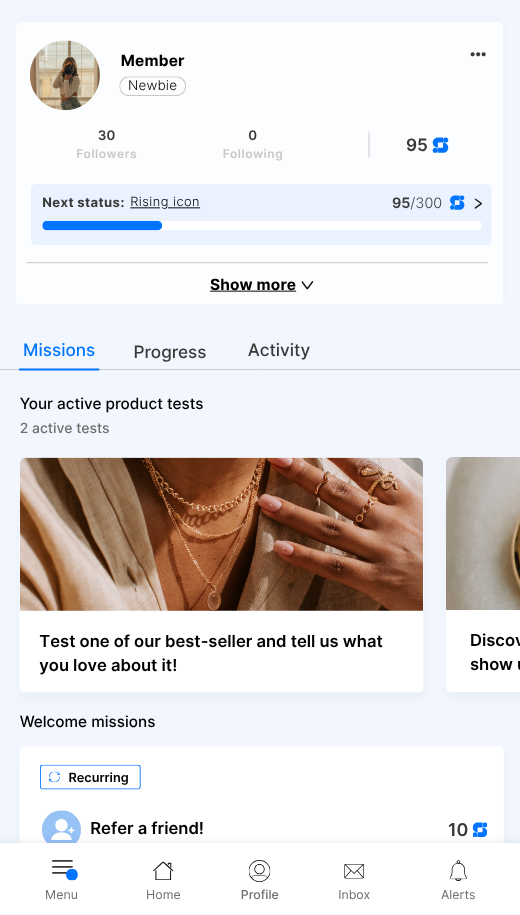
In this new section, each active product testing campaign appears as a card (sorted from oldest to most recent).
Members can quickly see and access:
- The product testing campaign title
- The number of active campaigns displayed
- A direct access to each campaign
- A button to see all product tests (which redirects the member to the product testing channel)
A campaign appears in this section as long as it is not deleted, not ended, and the member's test has not yet been validated.
If no product testing campaign is active, or if no product testing channel is configured in the community, the section doesn't appear.
However, if the channel is set up and there are active campaigns but the member is not eligible to participate, only the button to view all product tests will appear.
Homepage
The Next mission block on the homepage no longer shows product testing assets. This keeps the difference between missions and testing assets clear.
What changes in the back office
Product testing assets no longer appear in the global missions list, in the Live and Archive tabs. They remain configurable, visible and editable in the configuration or edit screen of the relevant product testing campaign.
Mission configuration
When you configure a global mission in the back office, the condition is participating to a test campaign is no longer available in the list of conditions.
Asset configuration
To create a product testing asset, you can follow the usual steps when creating a product testing campaign.
FAQ
Product testing assets are excluded from the global missions list to make this view clearer and easier to browse.
The member can find it in the Your active product tests section on their profile, or directly in the product testing channel.
No. The order defined in the back office remains the same. Product testing missions are simply ignored in the global display.
The asset remains available in the configuration or edit screen of the relevant product testing campaign.