Discover the social missions flow for members and how it impacts post validation, mission configuration and performance tracking.
Member experience
Step 1 – Participate in the mission
A member registered on the community and with their social networks connected to the platform will be able to see and participate in social missions. When opening a mission, the member can access:
- The mission description (brand brief and guidelines)
- The mission validation conditions: content and compliance hashtags, as well as one or more compliance wordings (ad disclosure phrases to add to the caption, for example: In collaboration with @brand)
- A button to copy all required elements at once (hashtags and the selected compliance wording if there are several). The member can then paste them into the post caption and publish it on the social network.
Single compliance wording |
Multiple compliance wording alternatives |
|
The member can copy the template containing the hashtags and wording using the Copy template button to paste everything into the post caption.
|
The member selects one of the compliance wording options, then copies all the elements using the Copy template button, and finally pastes them into their post caption. |
First position option enabled |
First position option disabled |
|
The member can copy the template and add their caption text after the compliance wording, keeping it at the very beginning of the caption, before the See more fold. |
The member can copy the template, add their caption text wherever they choose, and insert the compliance wording anywhere in the caption.
|
Step 2 – Mission validation 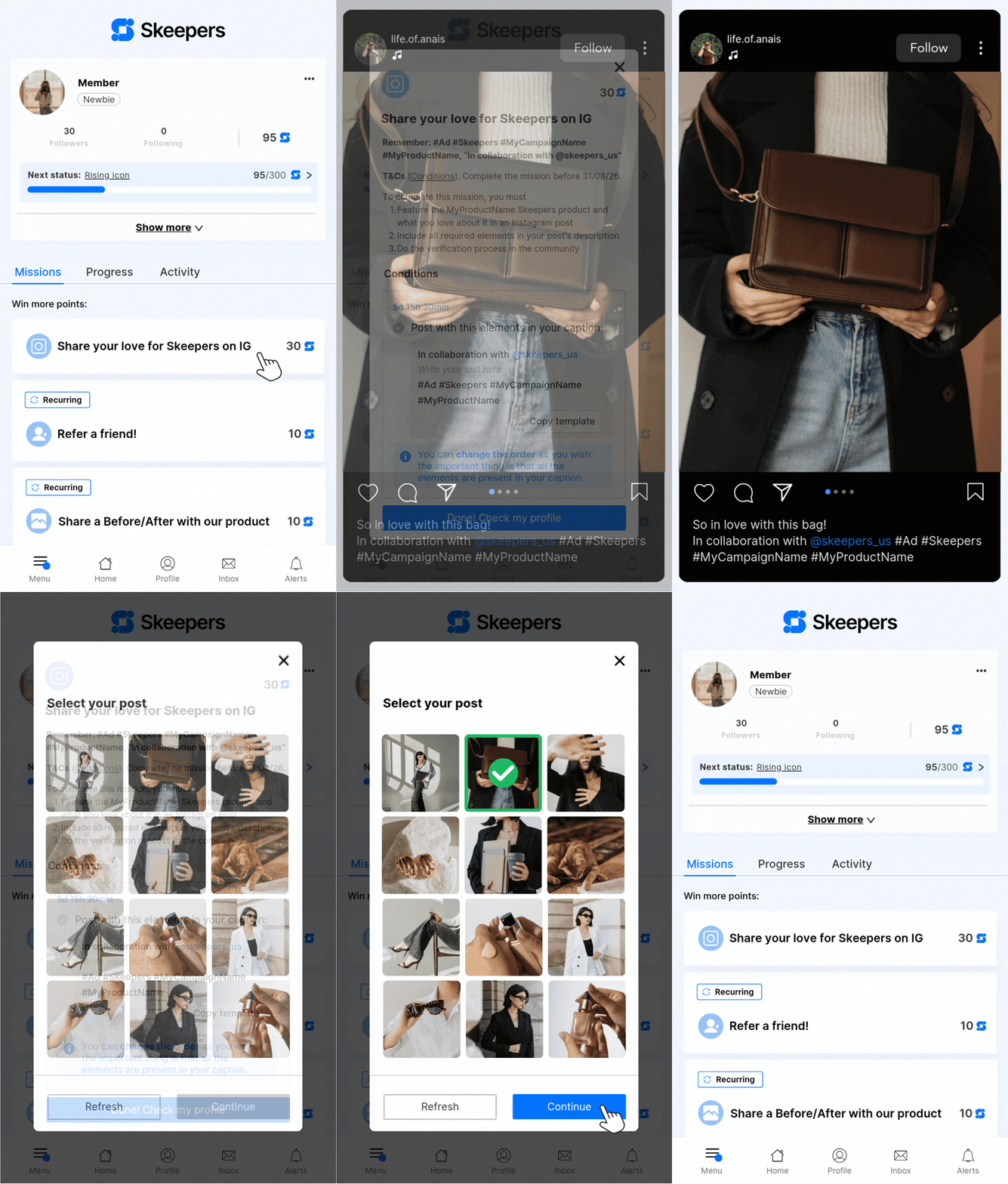
To start the mission validation process, the member must:
- Return to the community after publishing their content
- Open the relevant mission (from their profile), the contest or the product testing campaign
- Click on the CTA to start the validation process
- Directly select the post they want to submit to validate this mission
A verification pop-up opens. The system checks in real time whether the selected post meets all the mission criteria.
Validation uses AND logic: all criteria must be met for the participation to be validated.
All criteria are met |
One or more criteria are not met |
|
The post selected by the member is accepted, which validates the mission. Points are awarded within 24 hours to the member’s profile
|
The pop-up displays an error message that specifies exactly which criteria are not met. The member can correct their post by editing it, or select a different post, then submit a new participation |
After editing a post, changes can take 5 minutes to be taken into account.
During this delay, the member may still see an outdated result. This is why we recommend waiting at least 5 minutes before trying to validate the mission again.
New validation rules
A post can only validate one mission. Once a member selects a post to validate a mission, it cannot be selected to validate another mission.
This helps prevent inconsistent automatic validations and even fraudulent behaviour.
Concrete example: The brand creates 2 different missions that use the same hashtag : #Beauty.
-
With the old flow
A user could create a single post with #Beauty, and this post would automatically validate both missions. They would receive 2 rewards for 1 single publication. -
With the new flow
If the user creates a post with #Beauty and selects it to validate the first mission, they will no longer be able to select it to validate the second mission. To validate the second mission, they will need to create a dedicated post for that mission only.
Validation uses AND logic: all required hashtags must be present in the selected post to validate the mission.
Concrete example: The brand creates a mission that requires 2 hashtags: #Beauty and #Skin.
-
With the old flow
A user could create a post with #Beauty and another post with #Skin. These two separate posts would validate the mission, and the user would receive the reward 2 times. -
With the new flow
To validate the mission, the post the user selects must contain #Beauty AND #Skin together. If the selected post does not contain both hashtags, the mission is not validated.
If the mission includes compliance requirements, the member must also respect:
- Compliance hashtags (e.g. #ad, #sponsored) in addition to content hashtags
- The compliance wording: a mandatory phrase in the caption (e.g. In collaboration with @brand)
- If the First position option is enabled, the wording must appear before the See more fold in the caption
If a compliance element is missing, the member sees a clear and specific error message indicating what needs to be corrected (missing compliance hashtag, missing wording, or misplaced wording).
If multiple compliance wording alternatives are configured, the post is compliant as soon as it contains at least one (OR logic).
Configuration
Configuring the validation conditions for a mission, or the participation conditions for a contest or product test has been simplified. You can select:
- A Hashtag / Social post condition for a mission
- A Social media type for a contest
- A Social campaign asset for a product test
Here is how to proceed:
- Select the relevant social platform.
- Define the required content and compliance hashtags (5 maximum).
- Enable one or more compliance wordings. You can configure up to 10 wording alternatives by clicking on + Add wording.
- Enable the option to place the wording before the See more fold in the caption.
Editing a published and active mission can prevent validation for members who are currently participating.
Performance monitoring
The dashboard dedicated to social campaigns (Statistics > Social Campaigns Hub) is now centred around activities rather than hashtags. Learn more about the Social Campaigns Hub.
Each row displays:
- The activity name (mission, product test, contest)
- The type and relevant platform
- The activity creation date
Search is now done by activity name. Associated hashtags remain accessible in the detailed view of each activity.
No data will be lost. Performance data tracked by hashtag is aggregated at the activity level in the new Social Campaigns Hub view.
Anti-cheating and post monitoring
Once a social mission is validated, the platform periodically checks that the associated post remains live and still contains the required compliance elements.
- The post is checked daily for the first 7 days.
- It is then checked twice a week between day 7 and day 30.
- It is checked once a week between day 30 and day 60.
- A final check is carried out on day 90, with daily retries until day 97 if necessary.
If a post is deleted or no longer contains the required hashtags, it is flagged as non-compliant. This information is not visible in the back office and is available only on request via an internal data export.
No reward is automatically revoked. This mechanism is used to monitor and discourage fraudulent behaviour, not to automatically moderate posts.
Key points to keep in mind
To prevent or address issues that members may encounter, here are the important things to know:
- Hashtags must not contain accents or special characters
- The member’s Instagram, TikTok or YouTube account must be public
- The member must have added their social handle to the community before publishing
- The member must wait around 5 minutes after publishing or editing their post before submitting it
- Points can take up to 24 hours to appear on their profile
Need help checking whether a member has completed a social mission? Check out this checklist.