Channels are sections of your community, visible in the left navigation menu. They structure how members browse, interact and contribute to the community.
Each channel has a specific role: inform members, create engagement, collect content or feedback, support campaigns of product strategy,...
Some channels are open to all users, while others can be restricted based on roles, status or permissions.
Channel types
Channels can be grouped into three main categories:
1 - Informative channels
These channels are used to share content and guide members.
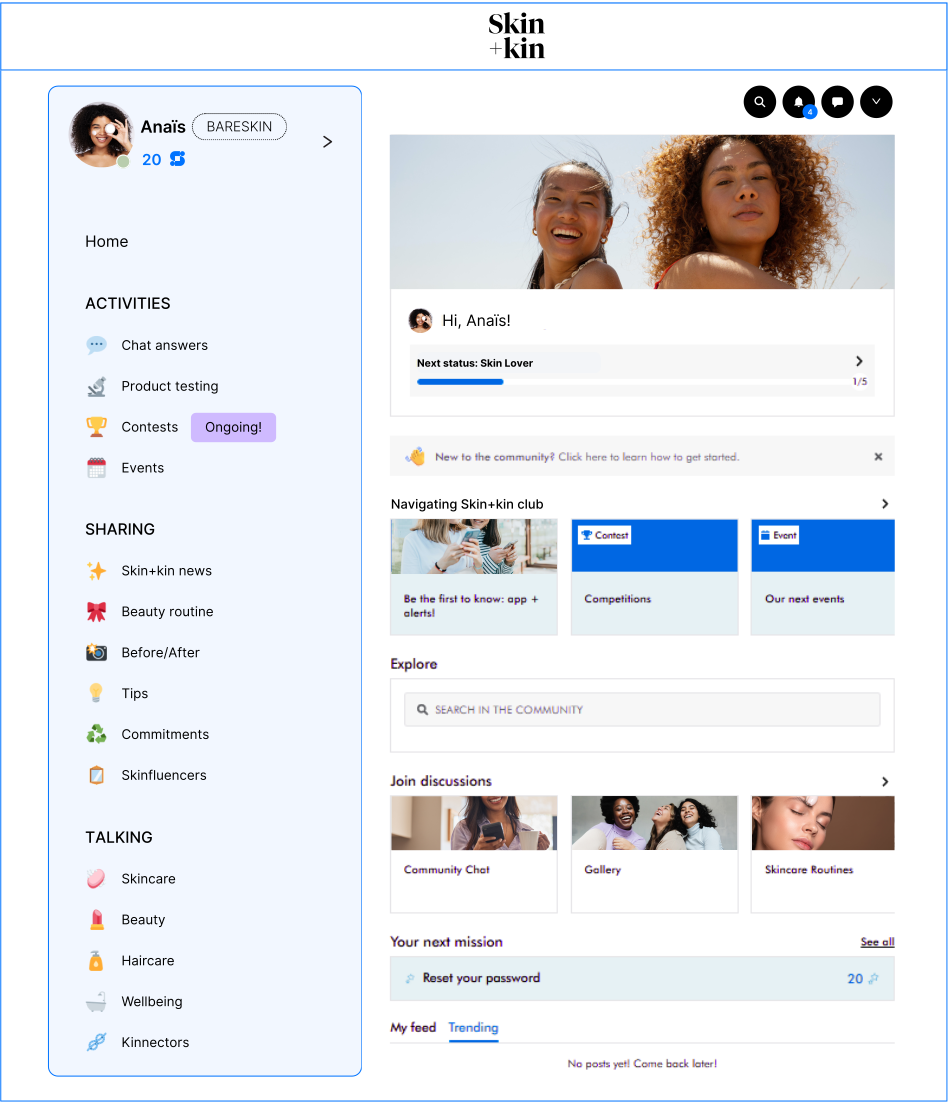
Main landing page and top channel of the community. It acts as a dashboard to highlight key content and channels, helping members to navigate the community. Discover how to manage homepage components.
Use case: highlight ongoing campaigns, key channels, or important updates.
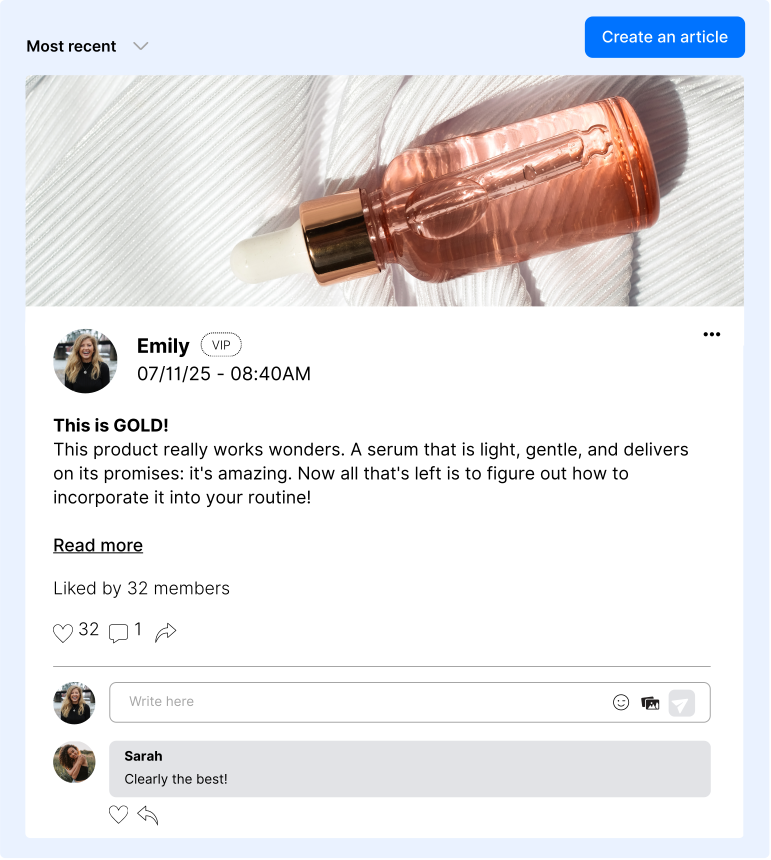
Highly customizable and engaging posts, mainly for brand's collaborators for qualitative awareness. Dedicated to long-form content such as articles, tutorials, or announcements. Discover how to create and manage blog channels.
Use case: educate members, share expertise, and drive attention to strategic topics.
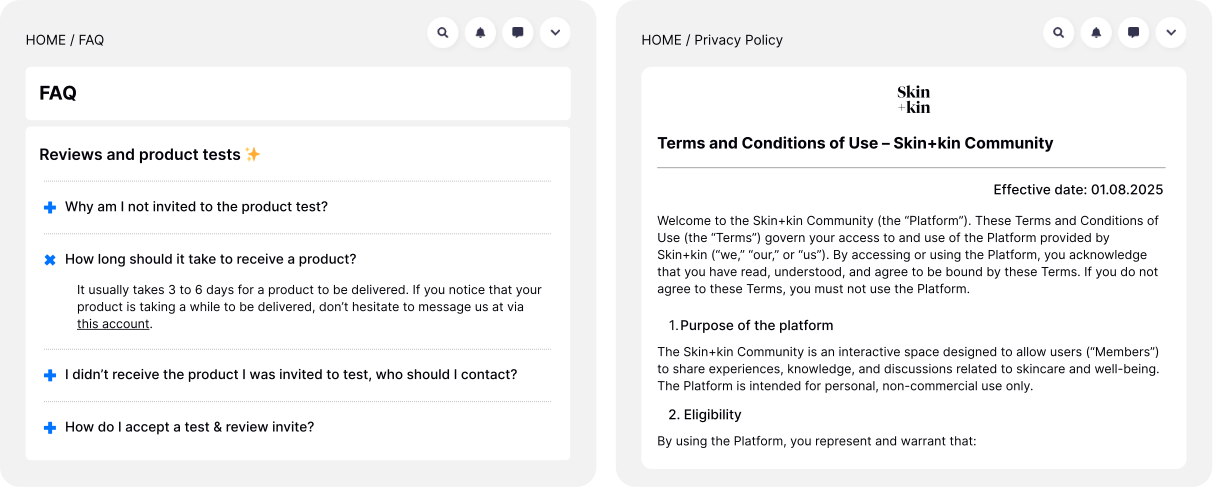
Additional pages on the community to host content that isn't elsewhere. This content is purely informative, static and non-interactive. Discover how to create Custom Pages.
Use case: FAQs, Community Guidelines or Terms of Use, legal content.
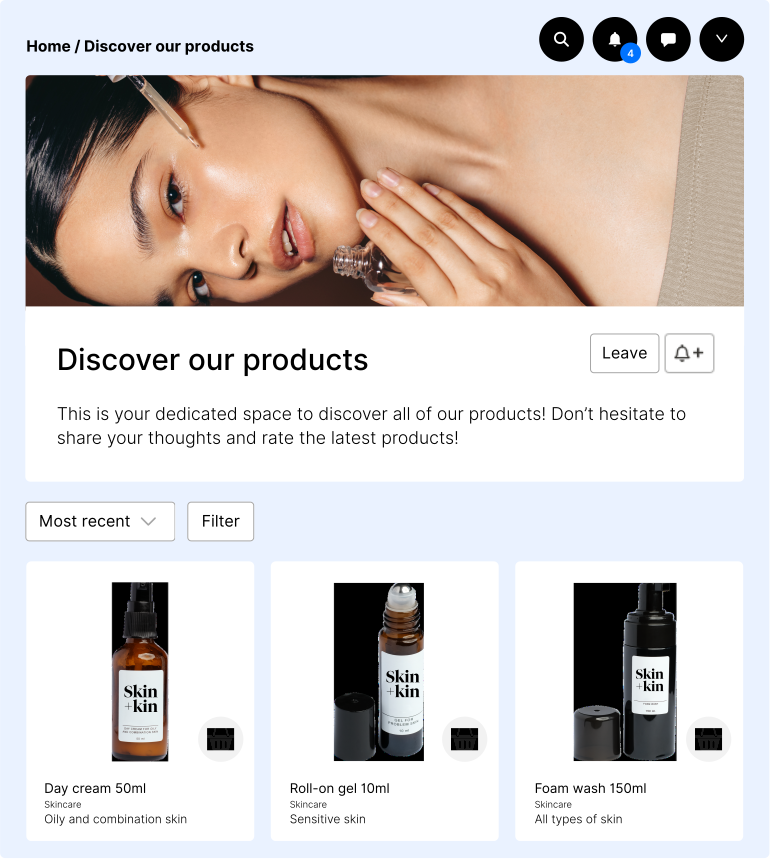
Displays your product catalog in a visual format. Discover how to create and manage product related channels.
Use case: support product discovery and collect feedback.
This private channel is dedicated to community managers and admins. This is where they can moderate content and members interactions, manage reports, track flagged content.
It helps ensure that contents meet community guidelines and maintains a safe, respectful environment.
Learn more about how to moderate your community by checking this article.
You can also ask to enable the AI Moderation Assistant feature to automatically detect risky content and speed up moderation.
2 - Engagement channels
These channels are designed to activate your community and generate participation.
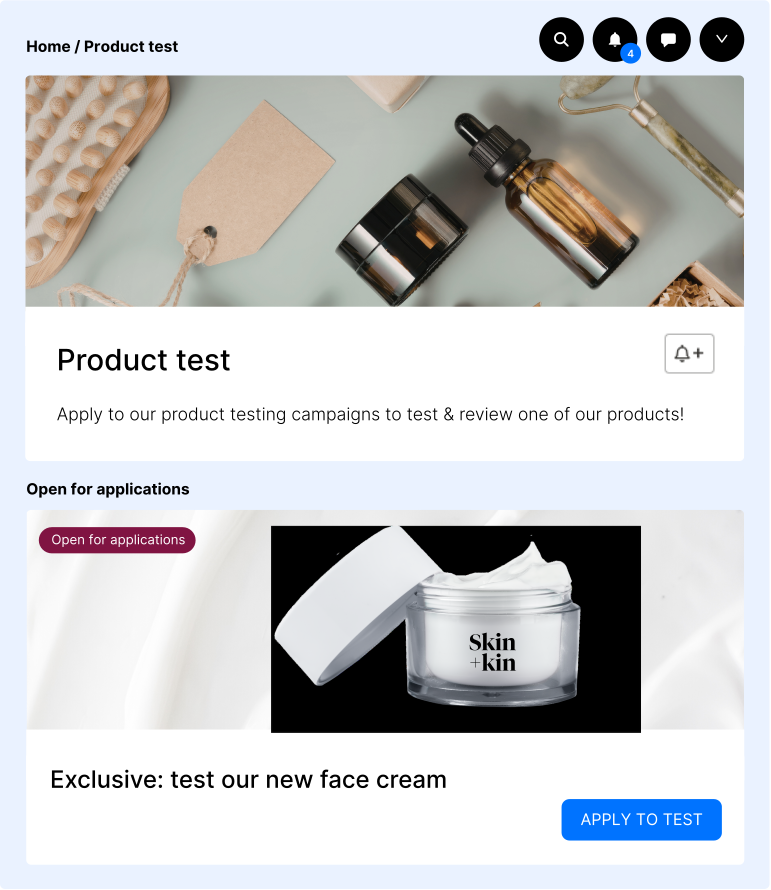
Manage product testing campaigns. Discover how to create and manage product related channels.
Use case: collect detailed feedback and engage loyal members.
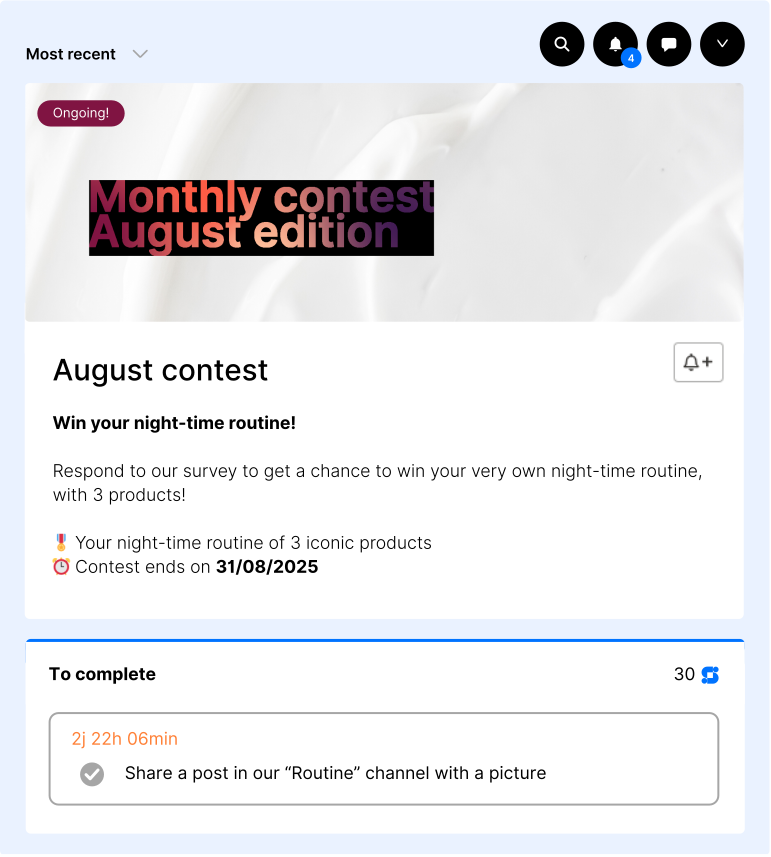
Host all contests (current and past). Discover how to create and manage Contest channels.
Use case: boost engagement and generate UGC.
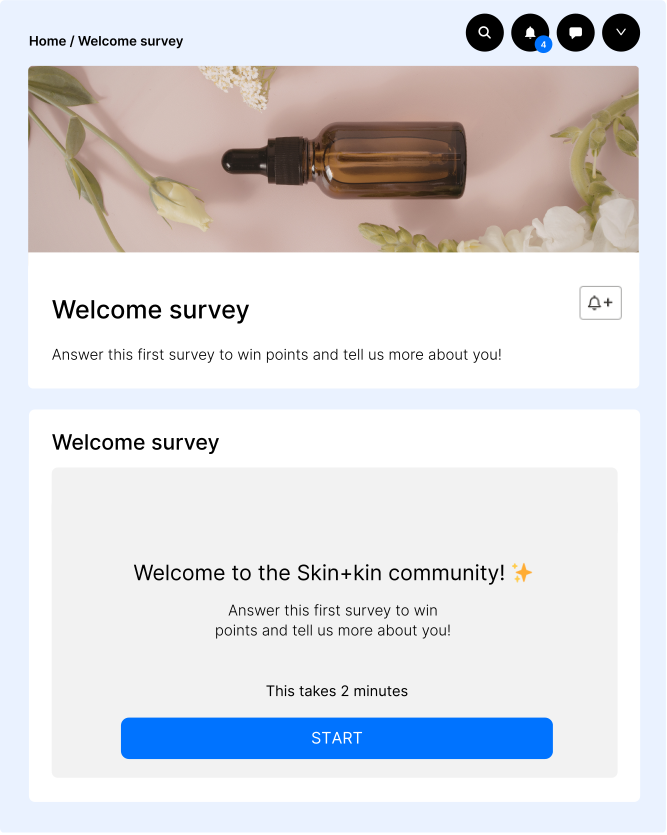
Display survey to the community. One survey channel can host one survey at a time. If you want 2 surveys at the same time, just create another survey channel. We are integrated with Typeform. Discover how to create and manage Survey channels.
Use case: collect quantitative insights and understand your audience.
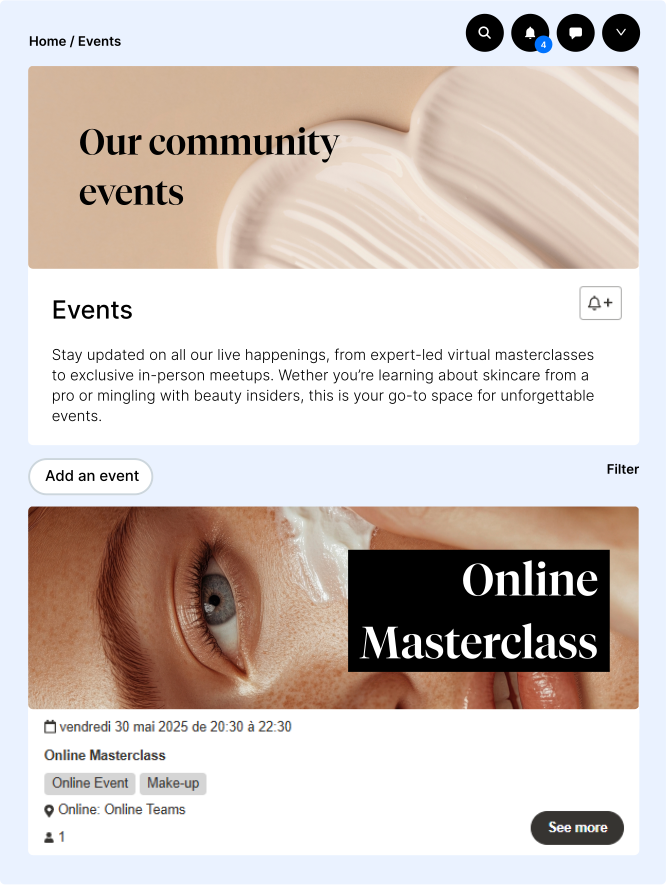
Promote and manage online or on-site events. We host the Event, and the link redirects to a video platform (Zoom, Teams, etc). Discover how to create and manage Event channels.
Use case: animate your community with live or online experiences.
3 - Interactive channels
These channels focus on user-generated content and discussions.
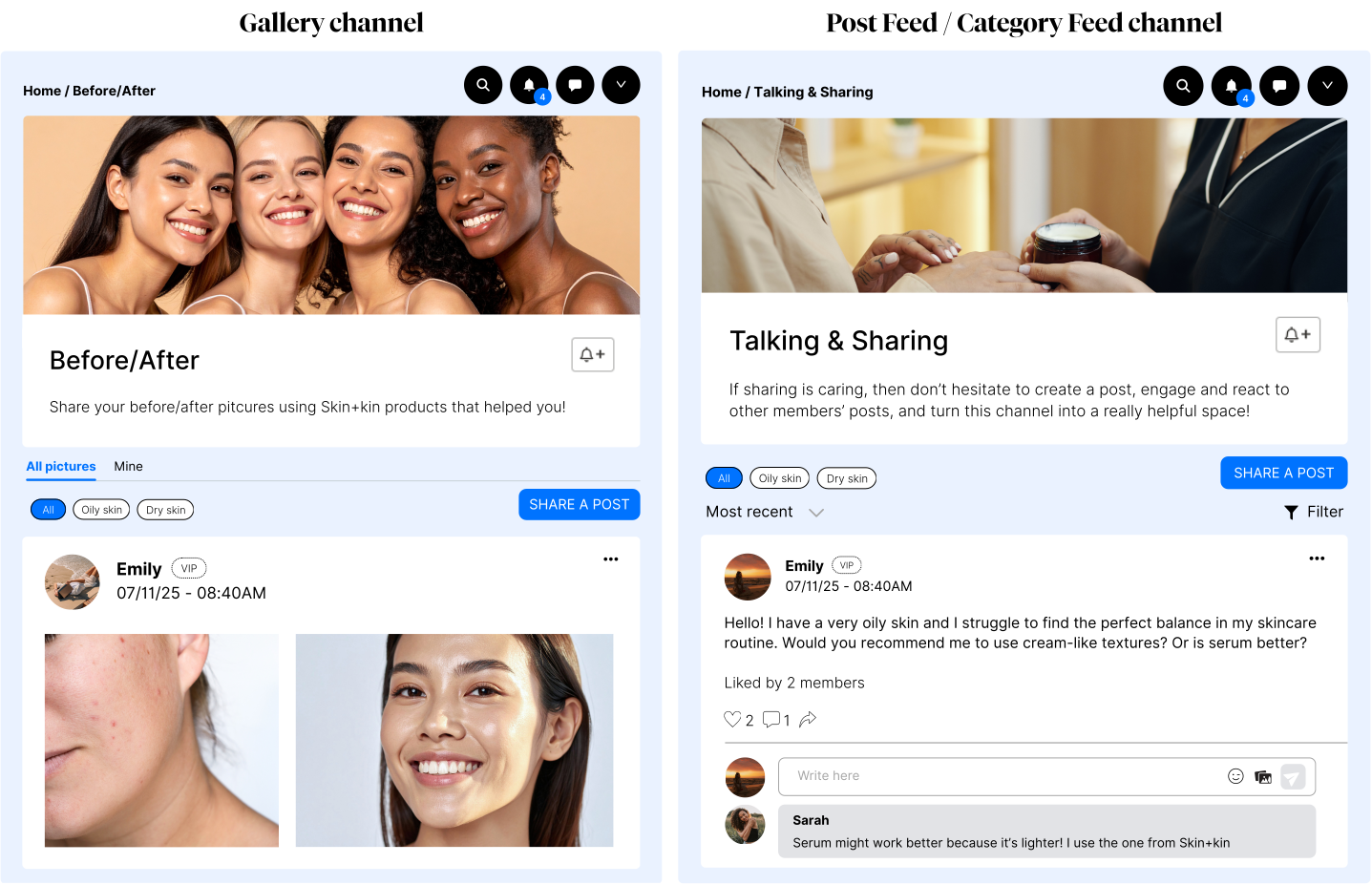
Scrollable feeds where members post and interact. Discover how to create and manage Gallery, Post Feed, & Category Feed channels.
Use case:
- Gallery: members can upload images and/or videos around a specific theme (best for photo contests, before/after, visual storytelling).
- Post Feed: generic discussion feed where members can post content (image, text, or both) and interact with others. It’s the most versatile feed channel.
- Category Feed: discussion feed organized by categories, offering members a way to filter content based on interests or specific topics.
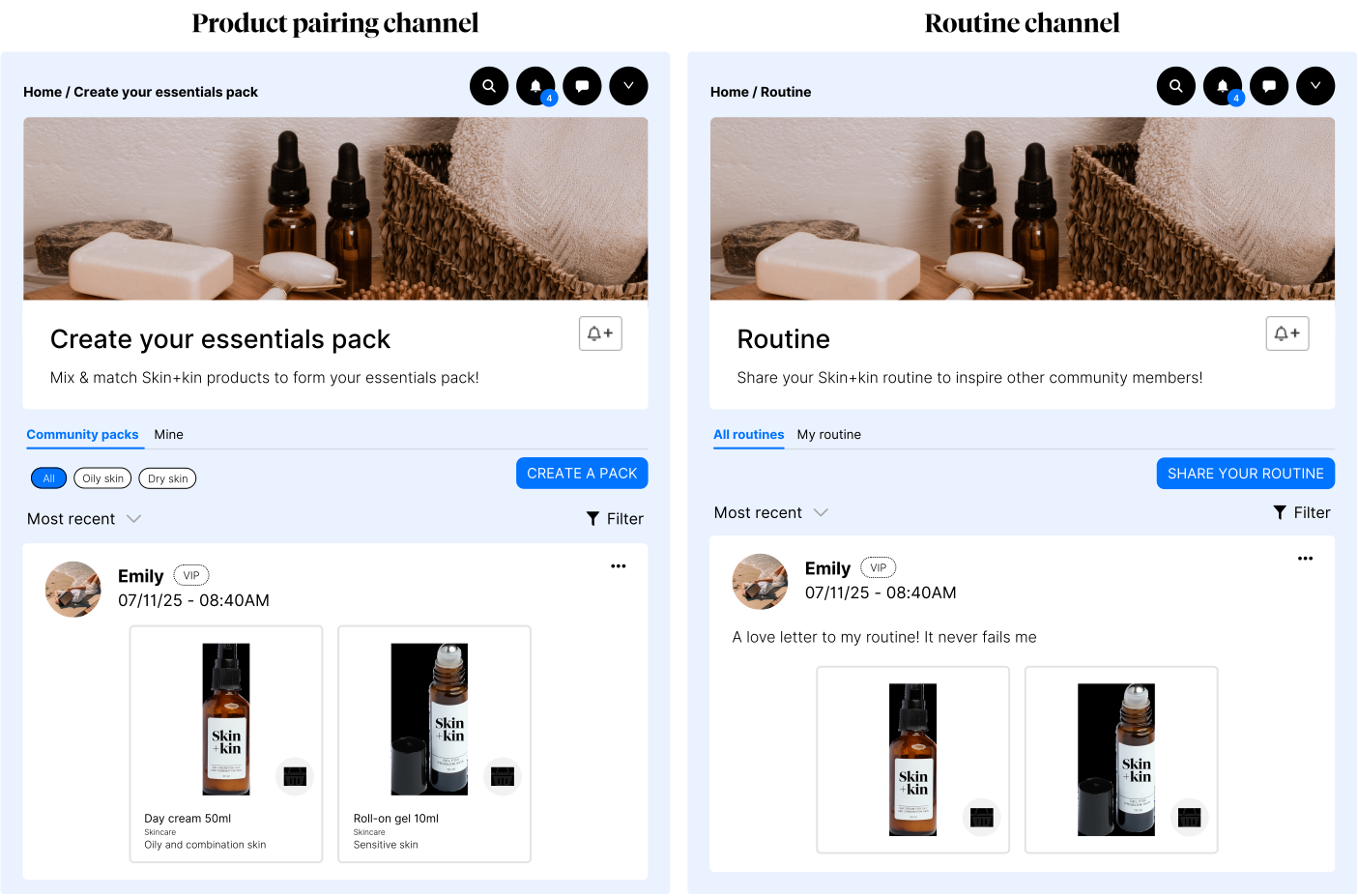
These channels allow members to combine & contextualize products in real-life scenarios (product catalog needed). Discover how to create and manage product related channels.
Use case:
- Routine: show how products fit into daily habits.
- Product Pairing: highlight product combinations.
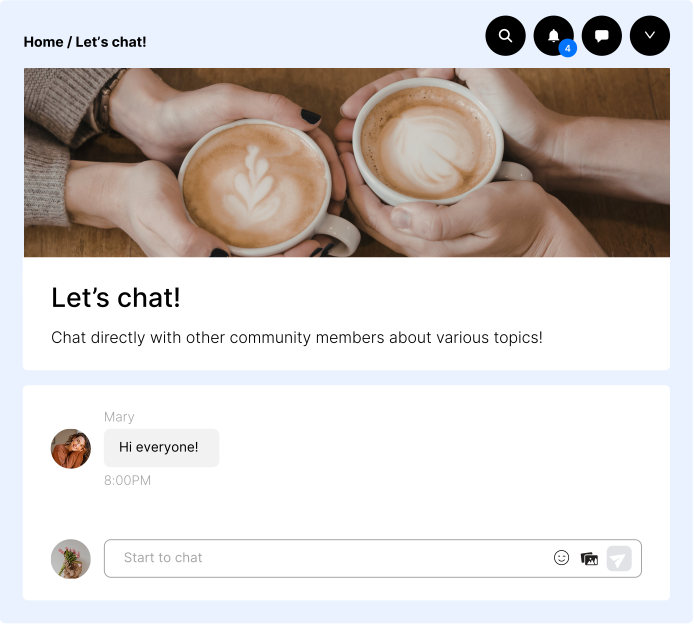
Real-time discussions. Discover how to create and manage Chatroom channels.
Use case: create topic-specific chatrooms, spontaneous interactions, foster connection and community bonding.
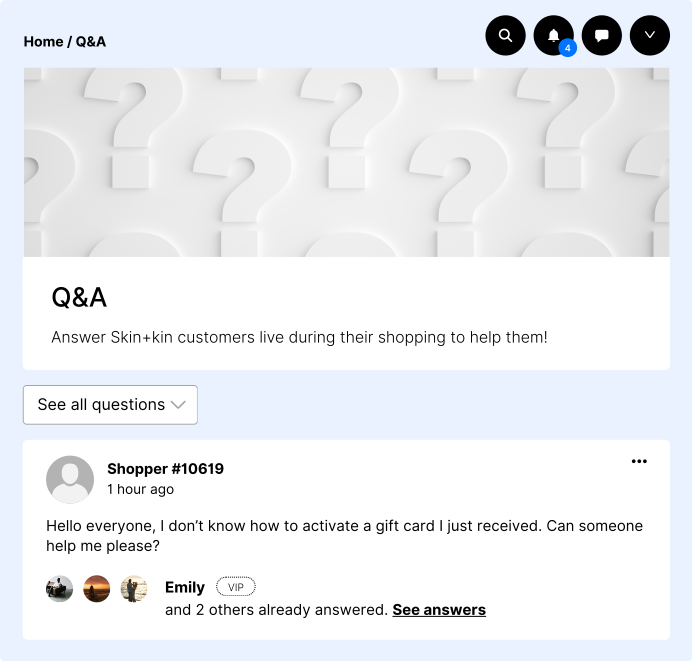
Displays questions from your website (Community Chat required). Discover how to create and manage Question channels.
Use case: encourage peer-to-peer support.
Channel information
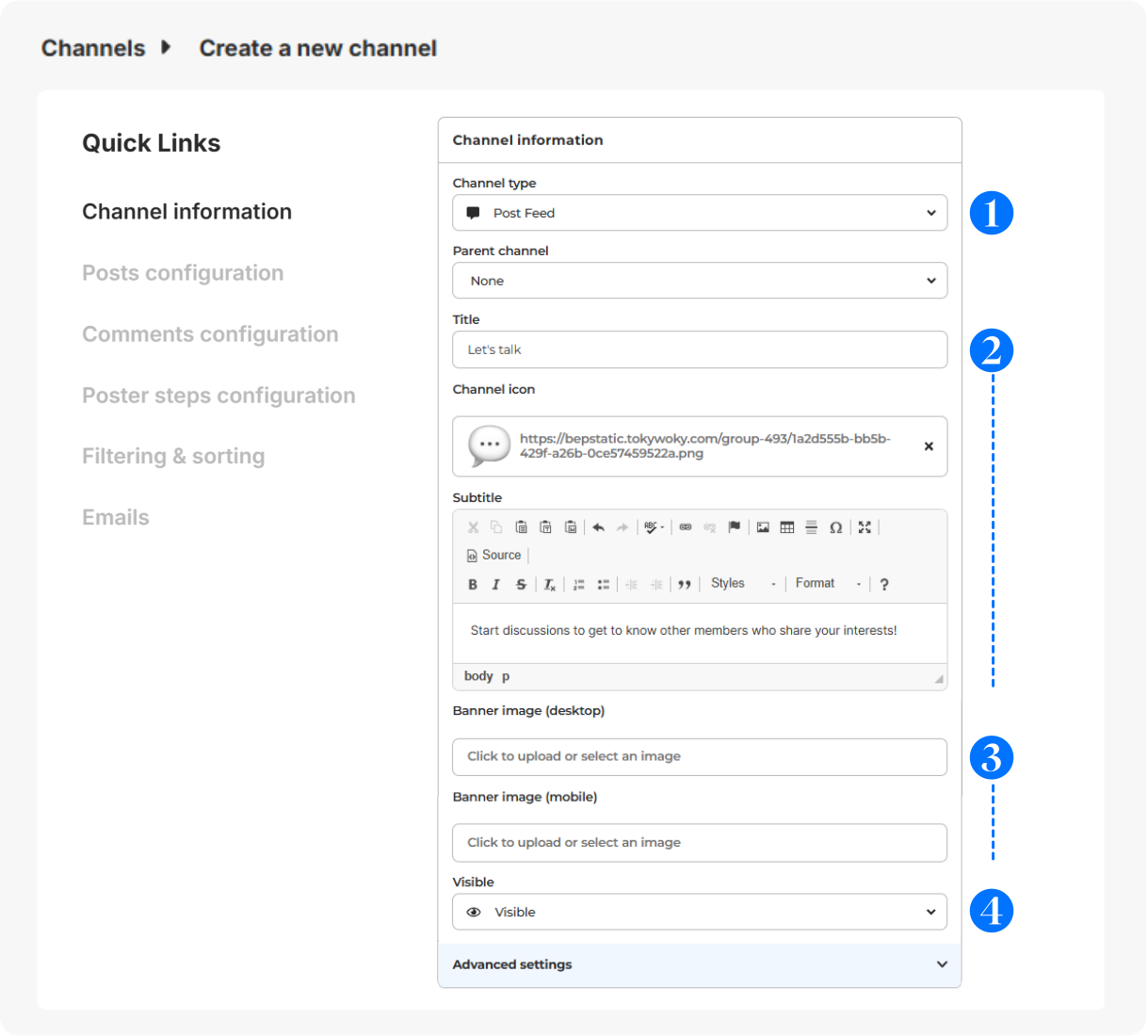
In Configuration > Channels, click on + Add a channel.
- Choose the type of channel you want (as seen above).
- Give it a title (short and clear for menu display), icon (optional - displayed before the title - 16x16px) & subtitle (to guide your members).
- Select a banner (svg, png or jpg) for desktop (640x200px) or mobile (360x140px).
- Visibility: Visible (to all users), Hidden (to all users, for deactivation), Limited (restricted to certain users for exclusive access), Link (private access with a link).
Advanced settings
- Allow users to update the Meta Title and the Meta Description for SEO: Allow admins (only) to modify Post title and subtitle for Google referencing.
- Allow users to subscribe/unsubscribe to this channel: If checked, members are able to unsubscribe to this channel via the Manage channels button activated in the menu.
- Users has to manually subscribe to this channel: Users will have to click on subscribe to see the content.
- Channel indexable by search robots: Allow search engines to display the channel content in search results.
Posts / Comments configuration
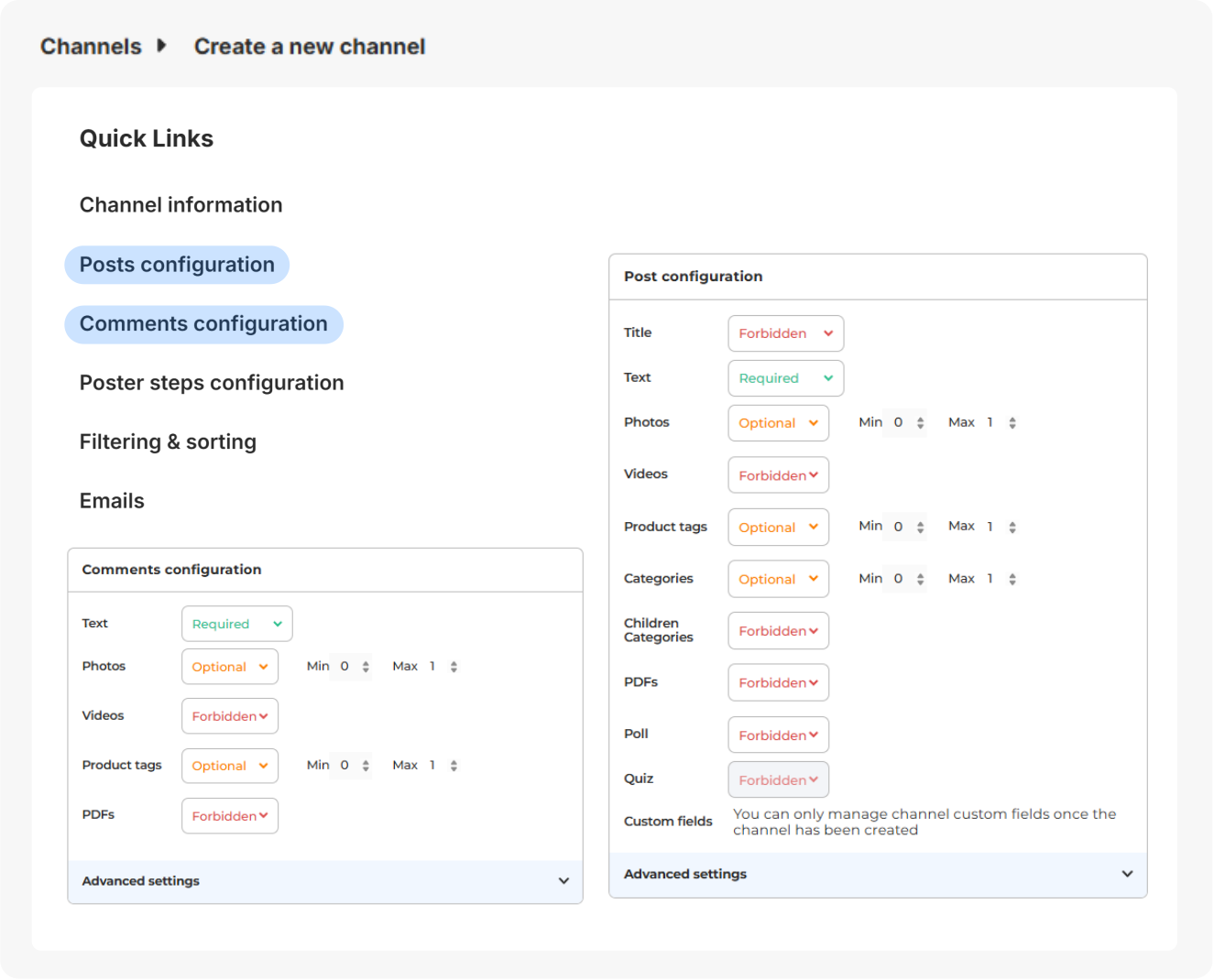 Define what members can publish:
- Required fields (title, text, media)
- Optional, restricted or forbidden elements
- Attachments (images, videos, product tags, polls)
Key options:
- Post validation by admins
- Like limitation (useful for contests)
- Auto-moderation with flags
Like per IP Address allowed (-1 for unlimited): restrict likes per user to avoid cheating behaviors (especially for contests based on the number of likes). It’s a rare use case so we advise keeping default settings.
Poster configuration
The Poster is the pop-up that your members fill in when creating a post creation, to guide them.
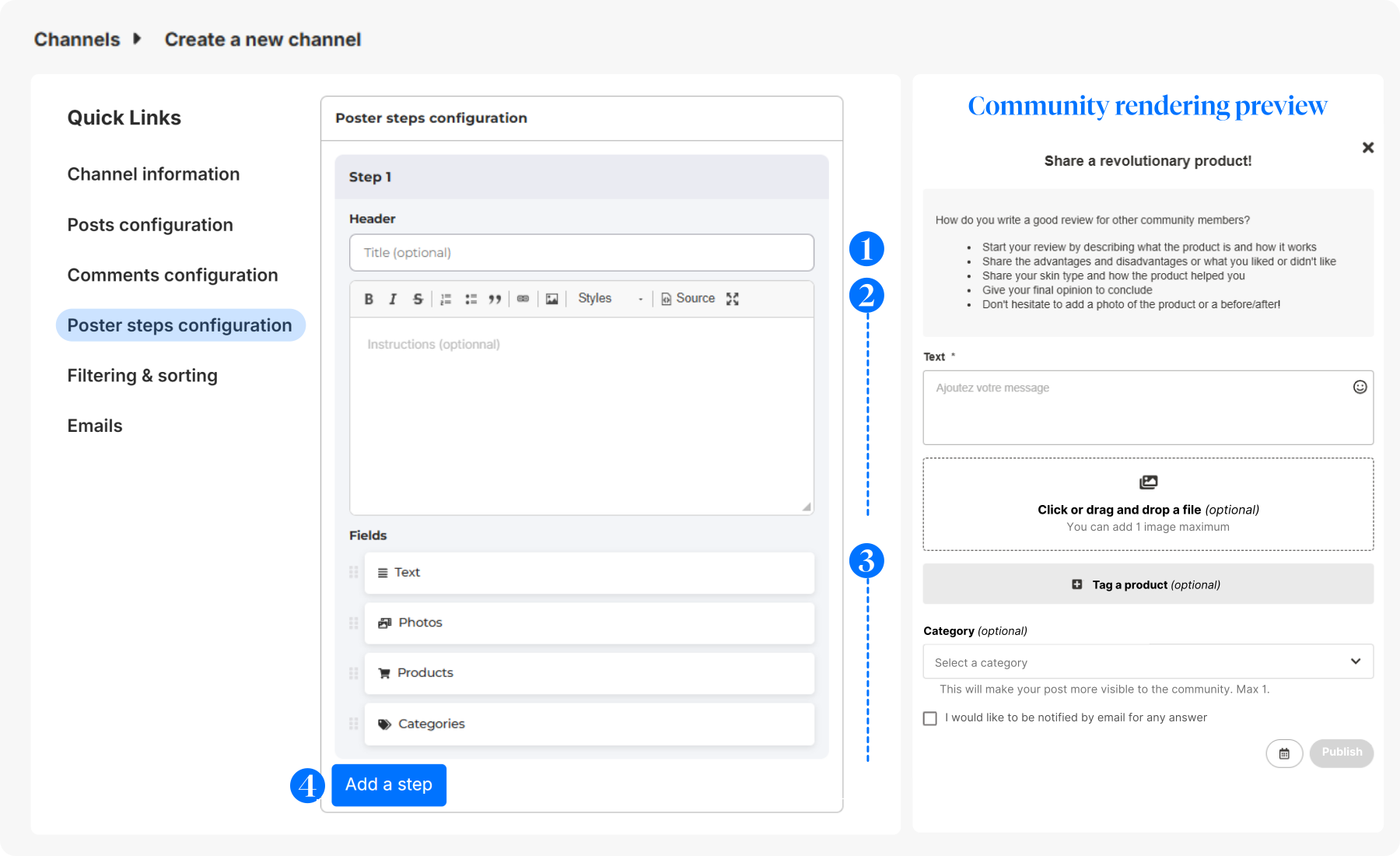
- Header: general action you want members to do.
- Description: guide your members.
- Organize the elements in the most logical order with the drag and drop icon.
- Add a step (optional): the longer the post, the more steps you can add. We recommend having 1+ steps for Blog, Routine and Product Pairing.
Filtering & sorting
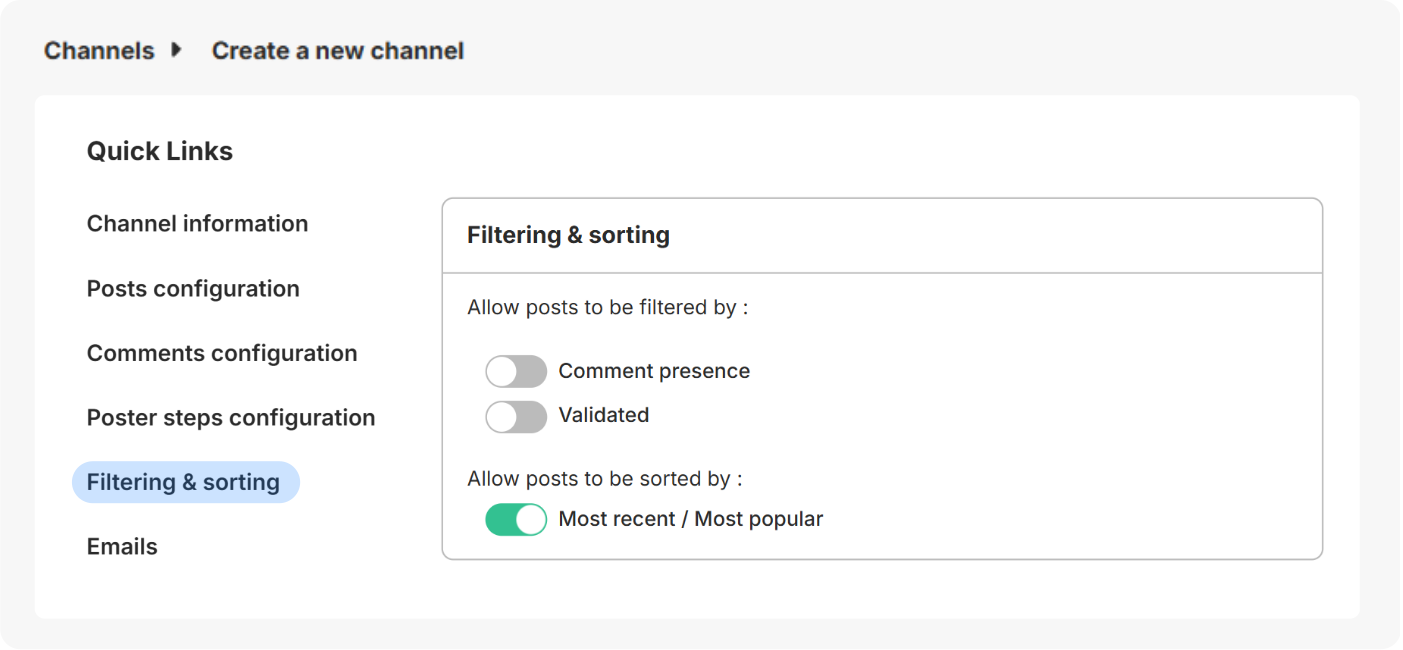
Add filters and sorting options to improve navigation with:
- Posts with or without comments (ex: in a Q&A channel, a filter to see posts without comments helps increase response rate)
- Validated posts
- Most recent or popular (total of likes + comments)
Want to create custom or specific filters for your channel?
The 3 options above are general filters. To create specific filters, you need to add Custom Fields to your channel. Members will then be able to filter content by these custom fields.
To do so, please check this article.
Emails
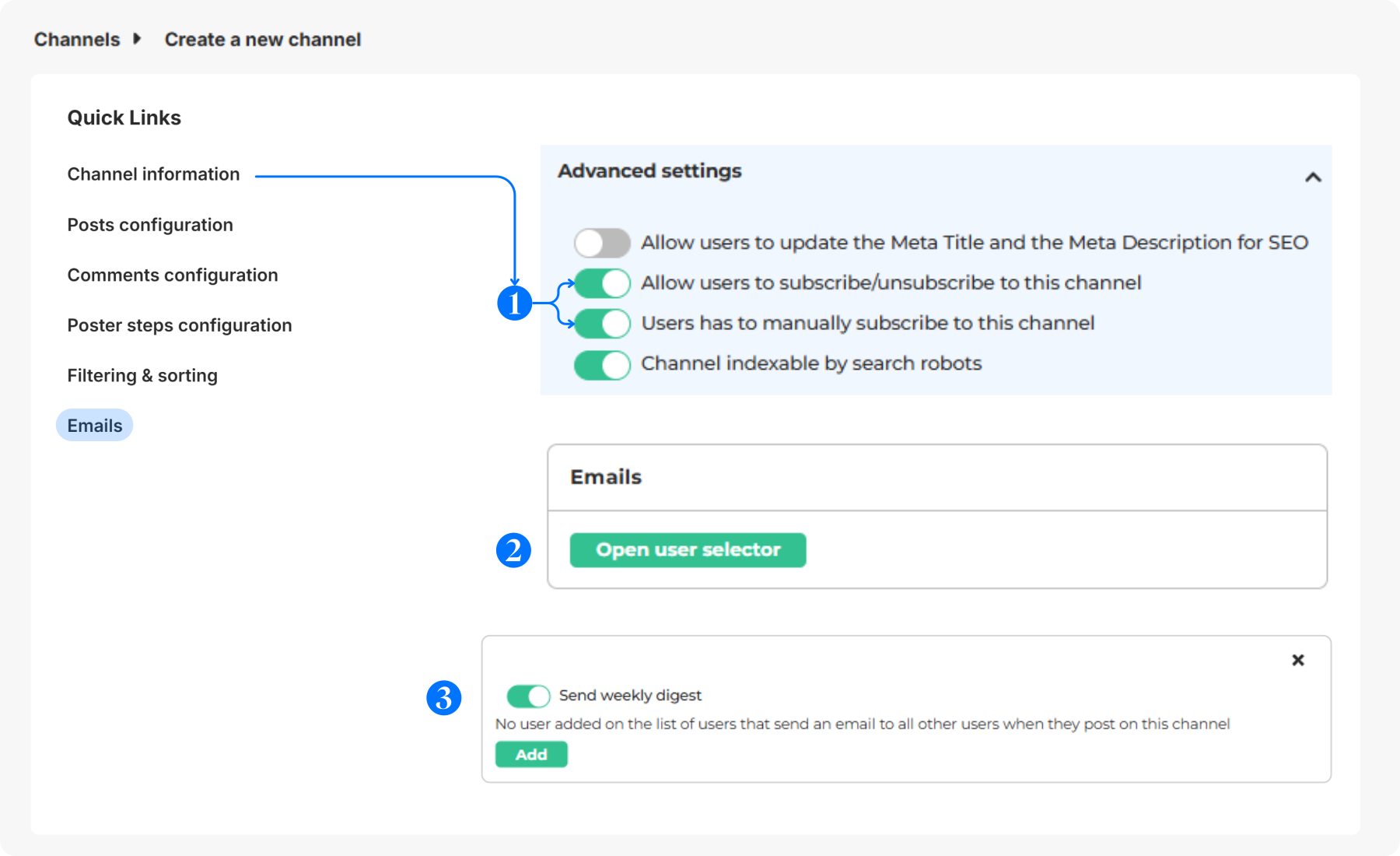
To enable email notifications when specific members post:
- Allow members to manually subscribe or unsubscribe, in the Channel information advanced settings.
- Click on Open user selector in the Emails tab when it appears.
- Activate a weekly digest email (every Tuesday).
- To select which members trigger notifications, enter their email or choose them from the member database. Subscribed users will receive an instant email when these members post.
FAQ
Some channels can be displayed on your e-commerce website to promote community-generated content (UGC). Can be used as widgets: Blog, Gallery, Routines, Product Pairing.
Learn more about our Widget Integration.
To hide, limit, or delete a channel's visibility, in Configuration > Channels:
- Choose the channel you want to delete and click the Edit icon
- In the Channel Information tab, scroll to Visibility and select the desired visibility option:
Visible: Accessible to all users.
Hidden: Not accessible to any users (for deactivation).
Limited: Restricted to a specific type of users (for exclusive access).
Link: Accessible with a private link.
Create the channel to be accessible only via a link (for testing purposes). You need to access the URL once to have permanent access to the page.
Click and drag the three dots up and down to change the position of the channel on the platform.
- In Configuration > Channels, click on the Edit icon of the desired channel
- In Channel Information, you can change the title and subtitle of your channel
Maybe you’ve created a channel for special events (Easter, International Women’s Day, Christmas, Valentine's Day, etc.) and want to reopen it later.
- In Configuration > Channels, click See Hidden Channels
- The dashboard will display all hidden channels (marked with a crossed-eye icon), click on Edit
- In Channel Information, scroll to Visibility and select the desired visibility option:
Visible: Accessible to all users.
Hidden: Not accessible to any users (for deactivation).
Limited: Restricted to a specific type of users (for exclusive access).
Link: Accessible with a private link (for testing purposes).
Specific users could be those with higher status or who have earned more than 100 points on the platform, or who possess a specific number of badges, etc.
Example: You want to create a channel group specifically for users with higher status. You need to grant them permission in the backend so other users cannot access the channel.
If you want to configure a channel with access limited to specific users, please inform your CSM so they can set the user permissions (feature available for Brand Communities Admins only).
In Configuration > Channels, click on the copy URL icon to retrieve the URL of the channel you need.
In Configuration > Channels, click on the + icon on the left. Click on Add a title and enter the name of your section.
You can drag and drop the section to the desired position by clicking on the dots.