Custom Fields allow you to collect specific information about your members to better understand your community.
What is a Custom Field
You can use Custom Fields to reach many objectives: better understand your community, personalize campaigns and experiences or collect information. For example, it can be about skin or hair type, shopping habits, social media handles, product preferences, interests, etc...
Create a Custom Field
Step 1 - Set up a Custom Field
In Settings > Custom user fields, click + Add. Then, when the pop-up opens:
- Fill in Label with your question or message
- Select the Type of field: text, single choice (one answer from a list), multiple choice (one or more answers from a list) or location
- Choose if the field is optional (user can skip it) or mandatory (user must fill it to save the page)
- Activate Read-only if you want to display information only (with no answer required). It's useful for providing info before the next question for example.
- Set the Rank to define the field position in the list (and display order)
About Rank: You can use the same rank number multiple times, but this is not a best practice. It creates confusion in the display order.
Recommendation: Create a logical structure with consecutive numbers (1, 2, 3, 4...) based on your needs.
Step 2 - Add answer options (if single or multiple choice)
If you choose to create a single choice or multiple choice Custom Field, you will need to add possible answers.
To do so, click + Add a possibility at the bottom right of the creation pop-up. Here is an example -->
You must add at least two options. Otherwise, you cannot save the field.
Step 3 - Choose display location (place)
You must associate the field with at least one place for it to appear. The same Custom Field can be associated with multiple places at the same time.
Users can edit their answers anytime from their community profile, regardless of the selected place(s).
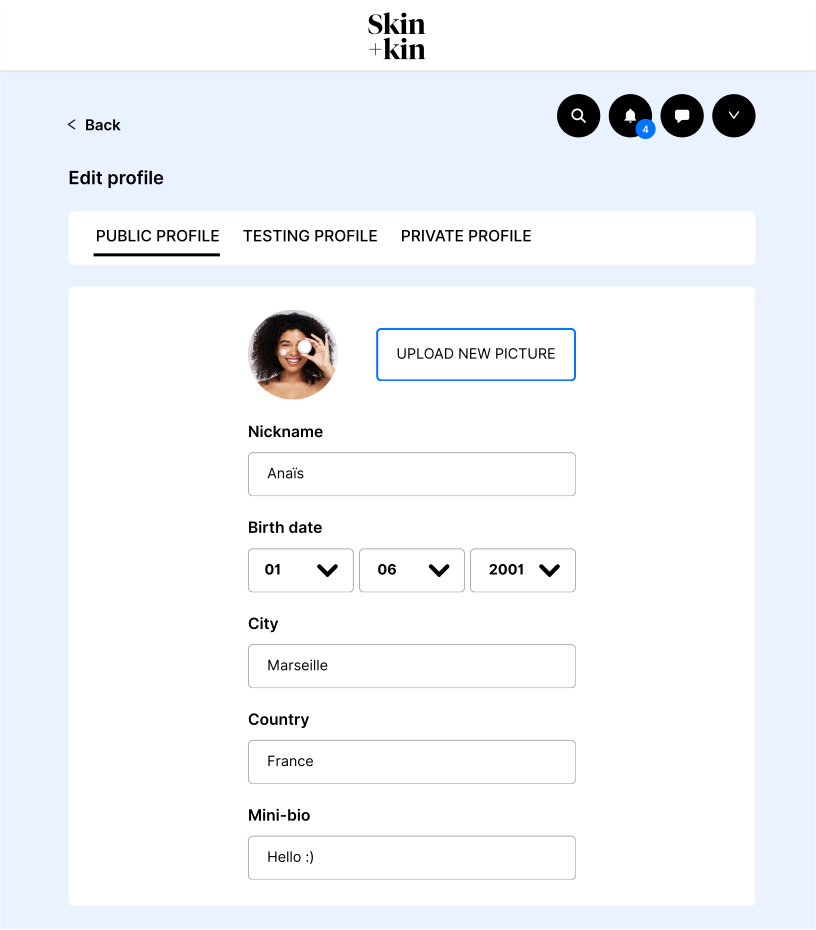
This place corresponds to the Public member's profile, accessible to other users. Use it to collect public information that helps identify the user.
A complete public profile helps engage new members quickly and adds a more human dimension to the community.
A dedicated gamification condition can also reward users for completing their public profile, including the Custom Fields linked to this place.
Typical examples include nickname, biography, Instagram/TikTok/YouTube handle, or any public preference you want to display on the profile.
This place is used in the Address pop-up shown when a member applies to receive a product. Use for shipping purposes (address details needed to send a product to the member).
If address information is missing, the user will need to complete it during the application flow.
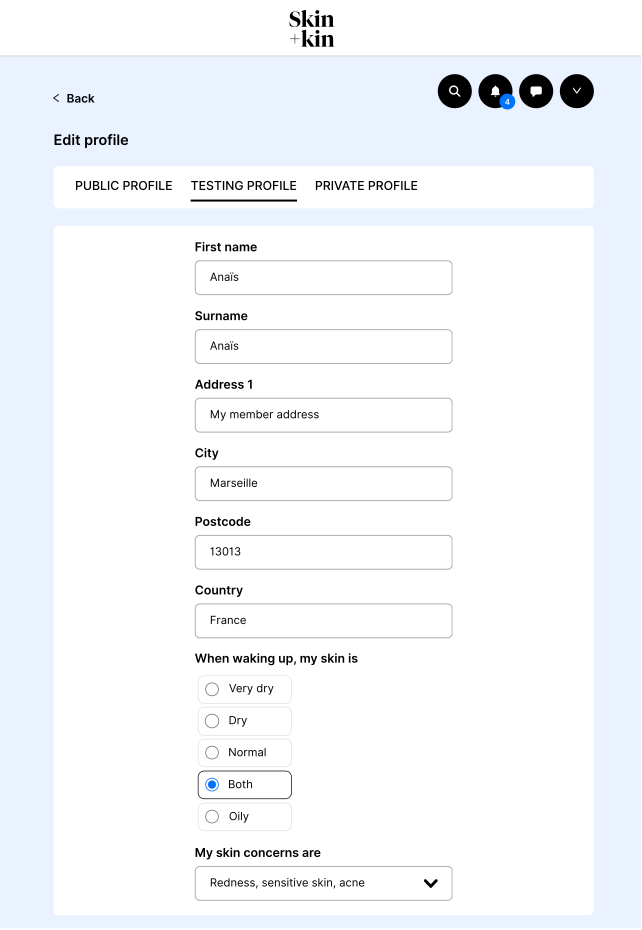 This place corresponds to the member's Testing Profile. It is used in the application pop-up for a product testing campaign to collect information about the tester profile.
This is useful to improve campaign targeting and pre-qualify members before selecting them for a campaign.
Typical examples include skin type, hair type, routine, shoe size, product habits, or any criteria useful for tester selection.
A dedicated gamification condition can also encourage users to complete this profile.
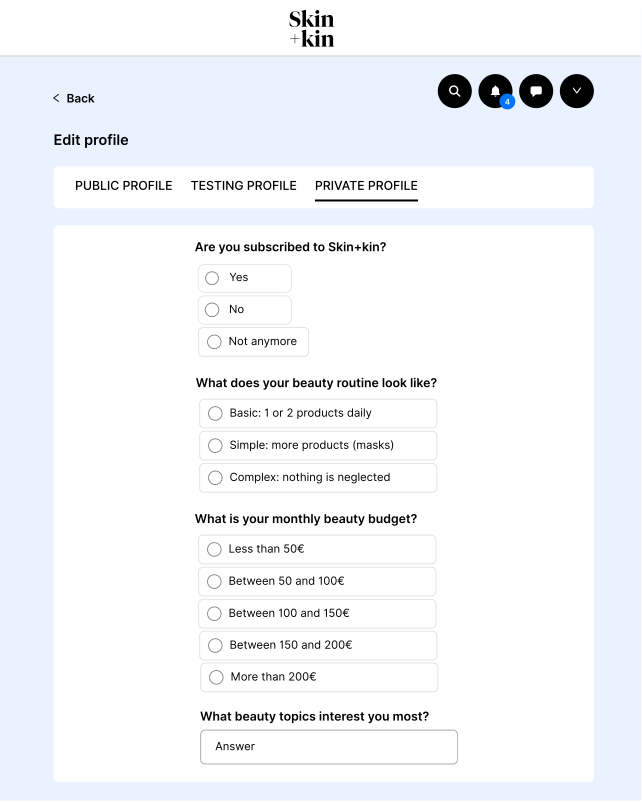 This place corresponds to the Private member's profile (only accessible by platform admins or team members).
This is useful for more sensitive, operational, or internal information such as subscription type, specific customer data, or a dermatological profile.
Users can still edit the information from their profile, but the content is not meant to be public.
This place corresponds to the pop-up shown when a user registers or logs in, if the required information has not been completed yet. Use it to collect key information early, so you can better know the user and personalize their experience from the start.
Typical examples include age range, gender identity, interests, skin concerns, shopping goals, or lifestyle habits.
This place is useful for onboarding, but it can also create friction during registration. For that reason, it is better to keep this form short and only ask for information that is really useful at this stage.
This place corresponds to a form linked to one specific product testing campaign. The field appears in the application flow for that campaign and can also appear when users leave a review, depending on the campaign setup. Use it to ask campaign-specific questions and check whether the applicant matches the selection criteria.
These fields are temporary and tied to the campaign only, unlike fields linked to Product Testing, which belong to the user's tester profile.
Typical examples include usage habits, preferences, product expectations, or any question needed to qualify the application for that campaign.
Step 4 - Safe the Custom Field
One everything is configured as needed, click Add this field.
It will appear in the list (accordingly to the defined Rank).
Best practices
- Keep questions simple and clear
- Avoid too many mandatory fields to reduce friction
- Use Welcome Popup carefully to not block registration
- Use Product Testing fields to qualify users efficiently
- Combine multiple fields to improve segmentation
FAQ
You can modify most settings, but not the field type.
Yes. Users can update their information anytime from their profile.
The field displays as a dropdown with a search bar to help users find an answer.
Rank defines the display order of fields. You can use the same rank number multiple times, but this is not recommended. Create a logical structure with consecutive numbers (1, 2, 3...) based on your needs.
Yes. The same Custom Field can be associated with as many places as desired at the same time.